Documentation
Use Drezze
with confidence.
From the first scan to the final cleanup, Drezze keeps every byte—and every decision—under your control.
01 · Installation
Choose your installer.
Homebrew
Homebrew installs the notarized app into Applications and gives you a normal upgrade path.
brew install --cask harshityadav95/tap/drezze-disk-cleanerSigned DMG
- Download the latest DMG from the download page.
- Open the disk image and drag Drezze Disk Cleaner into Applications.
- Eject the disk image, then open Drezze from Applications.
Terminal download
curl -fL -o Drezze-Disk-Cleaner.dmg https://github.com/harshityadav95/drezze-Disk-Cleaner-App/releases/latest/download/Drezze-Disk-Cleaner.dmgEvery release is Developer ID signed, notarized by Apple, stapled, and accompanied by SHA-256 checksums.
02 · First run
Begin with Overview.
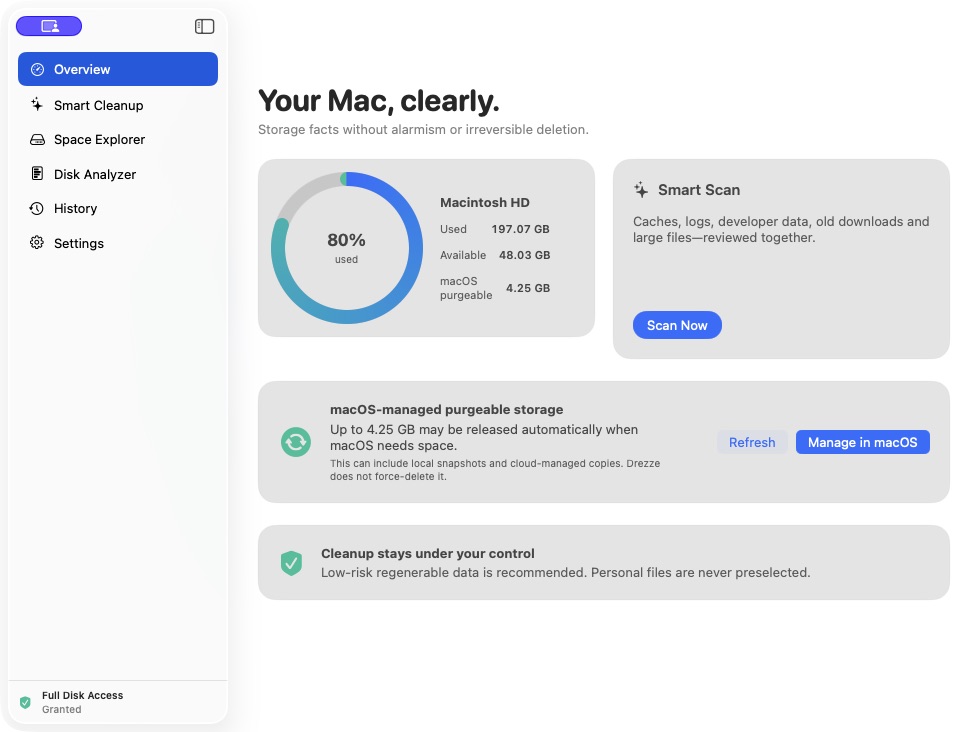
- Confirm used and available space on the startup disk.
- Read the macOS-managed purgeable-storage estimate separately from cleanup candidates.
- Select Full Disk Access if you want protected locations included.
- Use Scan Now to begin Smart Cleanup.
Full Disk Access only changes what Drezze can read. It does not allow automatic deletion, and Drezze never force-cleans macOS purgeable storage.
03 · Smart Cleanup
Review before cleaning.
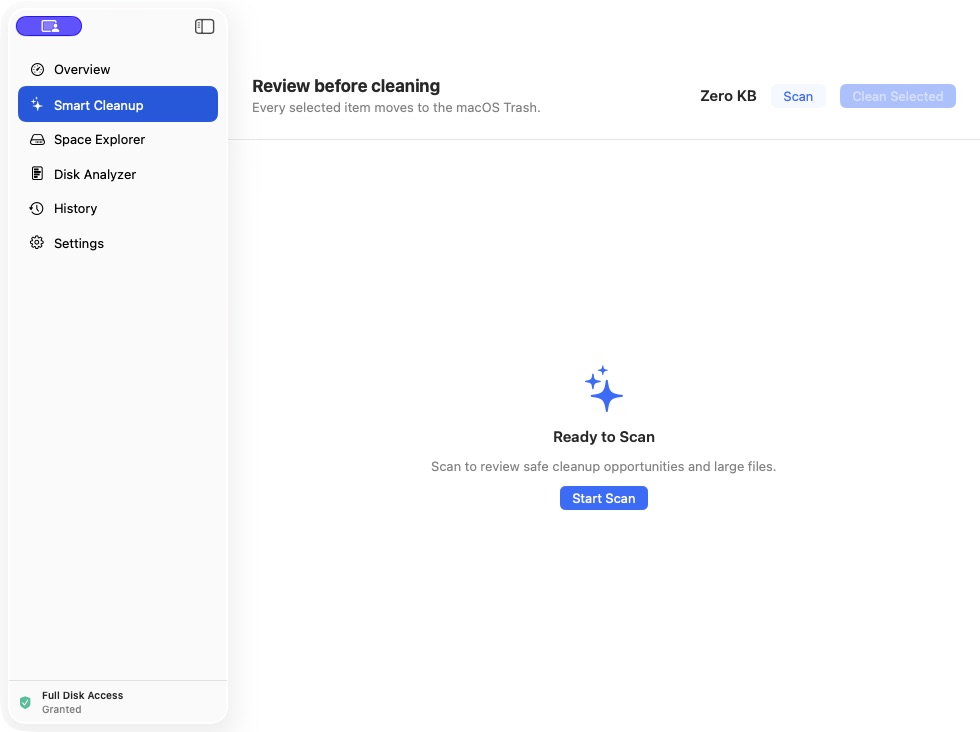
- Select Scan and wait for all enabled categories to finish.
- Open each category and inspect item names, paths, sizes, and risk labels.
- Keep anything unfamiliar unselected. Personal files are never preselected.
- Select Clean Selected only after checking the final total.
- Review the result in History and inspect the macOS Trash before emptying it.
04 · Space Explorer
Find large personal files.
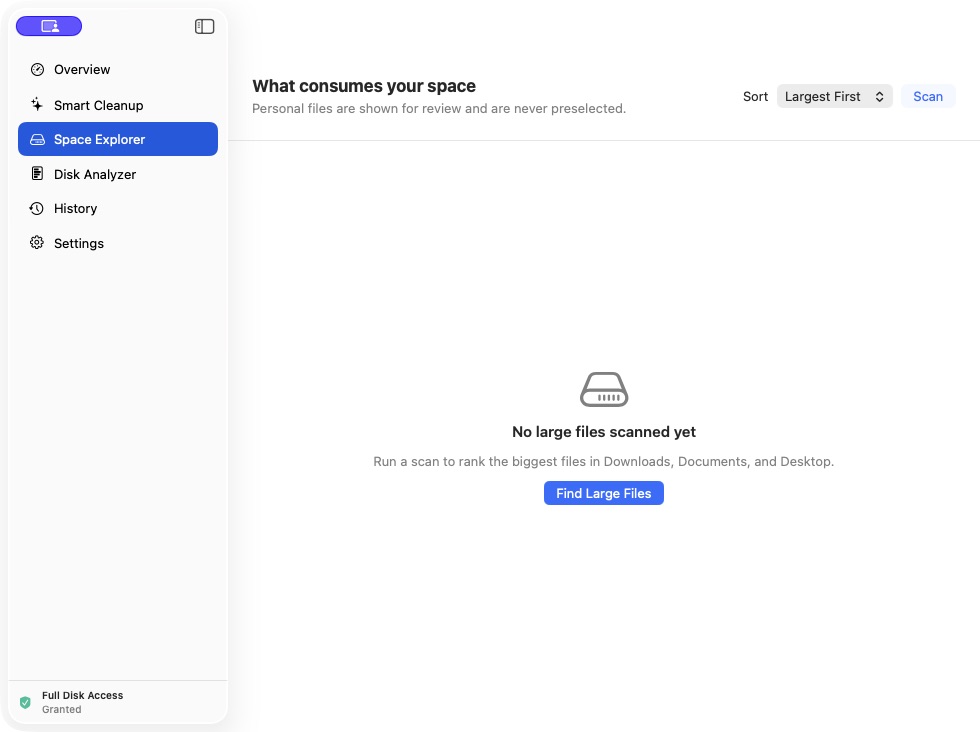
Space Explorer ranks large files in Downloads, Documents, and Desktop. Sort by size or age, reveal an item in Finder, and decide outside the pressure of an automatic recommendation.
- Change the minimum size in Settings if the list is too broad or too narrow.
- Use Finder preview before selecting archives, media, project files, or virtual machines.
- Large personal files require explicit selection every time.
05 · Disk Analyzer
Map the whole disk.
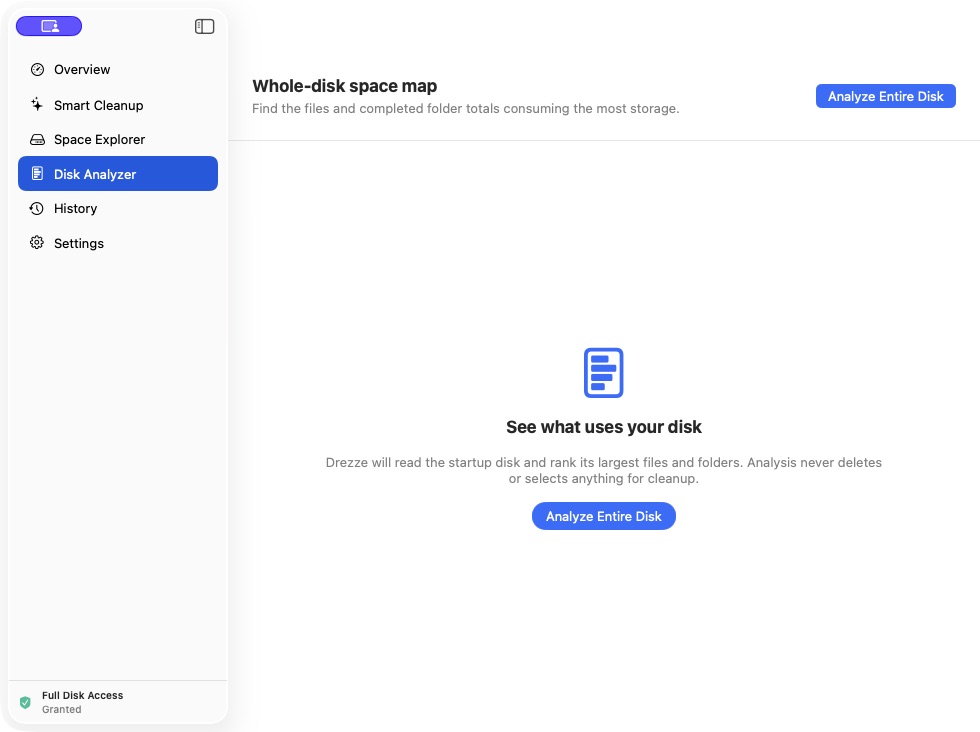
Disk Analyzer is a read-only view that ranks large files and completed folder totals across the startup disk. Analysis never selects or deletes anything.
- Select Analyze Entire Disk.
- Let folder totals finish before comparing results.
- Search or sort the ranked list.
- Reveal an item in Finder when you need more context.
06 · History & Settings
Keep the rules visible.
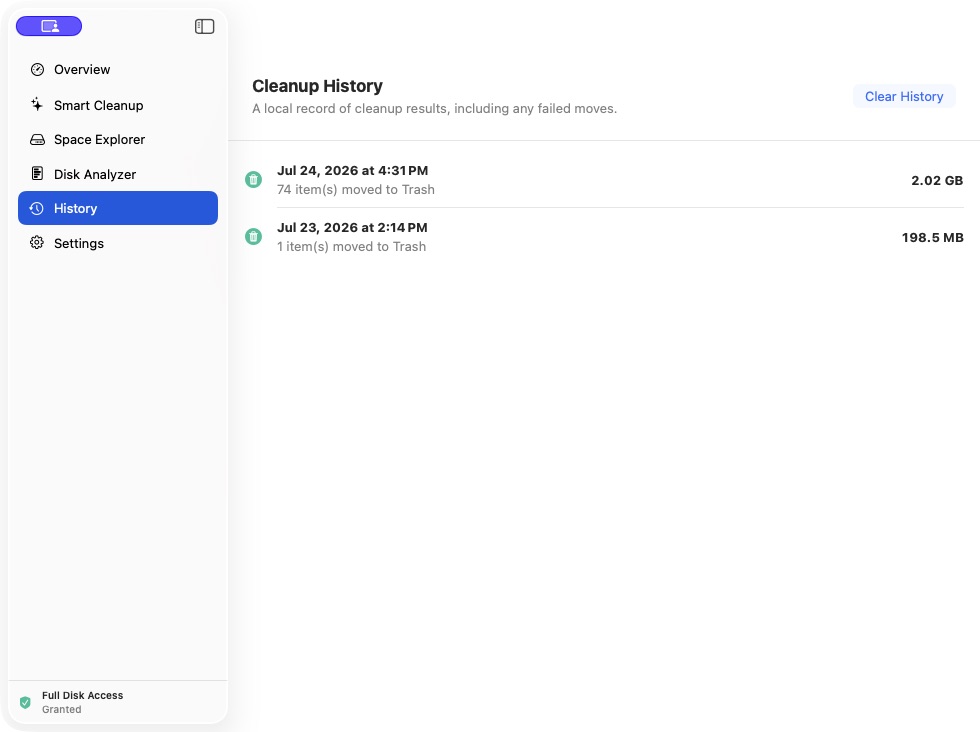
History records the date, reclaimed space, number of items moved, and failures locally. It contains no cloud sync or account data.
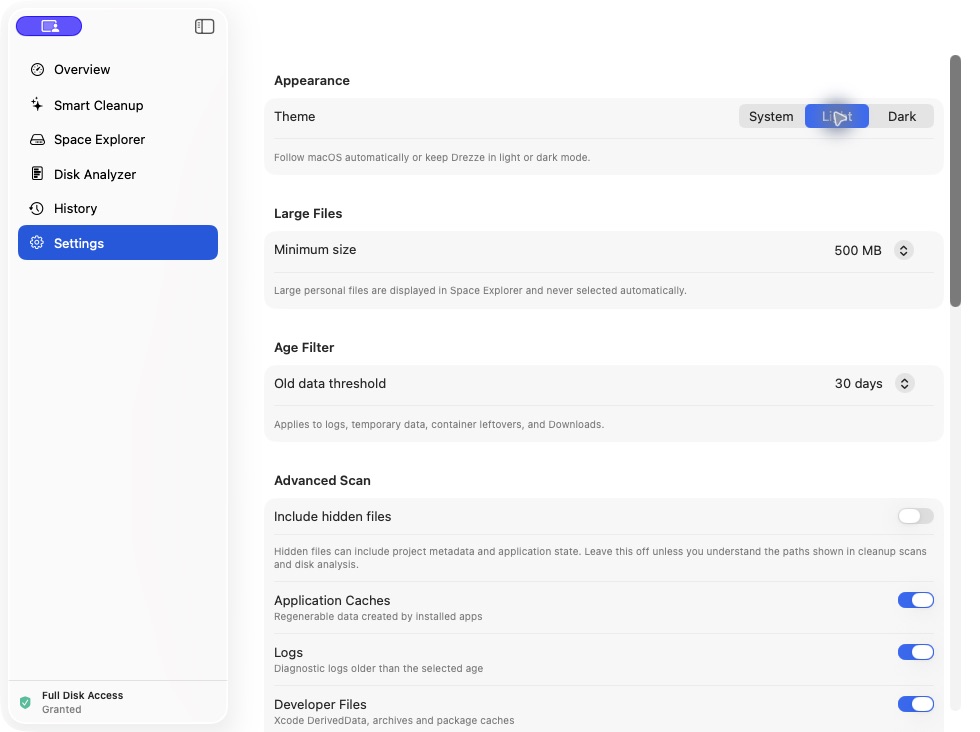
- Minimum size: controls which personal files appear in Space Explorer.
- Age filter: limits old logs, temporary files, leftovers, and Downloads.
- Scan categories: enable only the kinds of data you want included.
- Hidden files: leave disabled unless you understand the paths shown.
07 · Safety contract
Recoverable by design.
- Cleanup uses canonical-path validation and category allow-lists.
- Personal files always require explicit review and selection.
- Approved items move to the macOS Trash rather than being permanently erased.
- Drezze does not force-delete macOS purgeable storage.
- Scanning, results, settings, and history stay on the Mac.
Open Trash and confirm you no longer need the moved files. Emptying Trash is the permanent deletion step, and it is performed by macOS—not Drezze.
08 · Troubleshooting
Common fixes.
Protected folders are missing
Open Settings → Privacy & Security → Full Disk Access, enable Drezze Disk Cleaner, reopen the app, and select Refresh.
A scan looks incomplete
Wait for the scan to finish, verify the relevant category is enabled, and check the age and minimum-size thresholds.
Homebrew cannot find the cask
brew update && brew install --cask harshityadav95/tap/drezze-disk-cleanerStill blocked?
Open a public issue without attaching personal filenames, paths, or scan results.