Install GUI Desktop in WSL2 Ubuntu 20.04 LTS in Windows 10
Install GUI Desktop in WSL2 Ubuntu 20.04 LTS in Windows 10
Install GUI Desktop in WSL2 Ubuntu 20.04 LTS in Windows 10
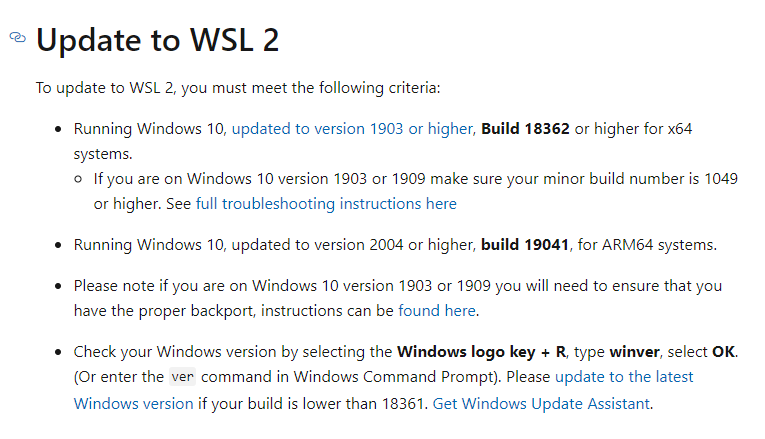
First check if you Windows 10 Version supports WSL 2 or not checkout the link[Link]
Setup
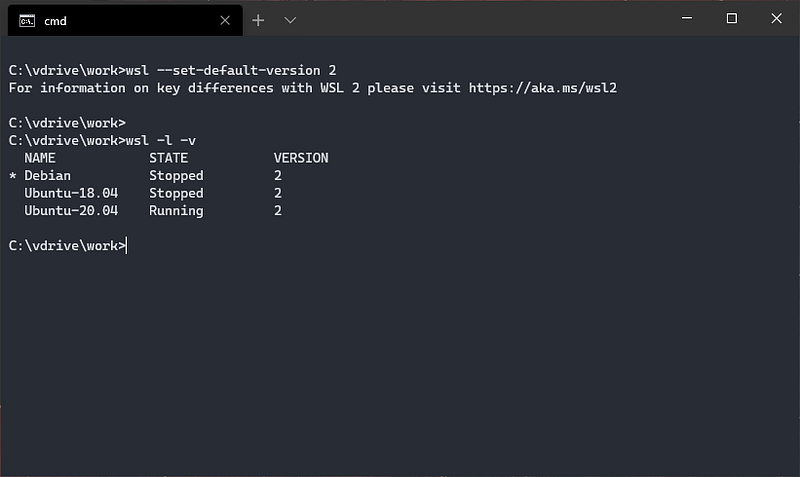
Once you are done with installation, you can set wsl2 to be default using command:
1
wsl --set-default-version 2
you can check the version of the distro using command (our case ubuntu 2)
1
wsl -l -v
You can change the version using command if its WSL version 1
1
wsl --set-version <Distro> 2
Once your distro is up and running you can setup either Xfce
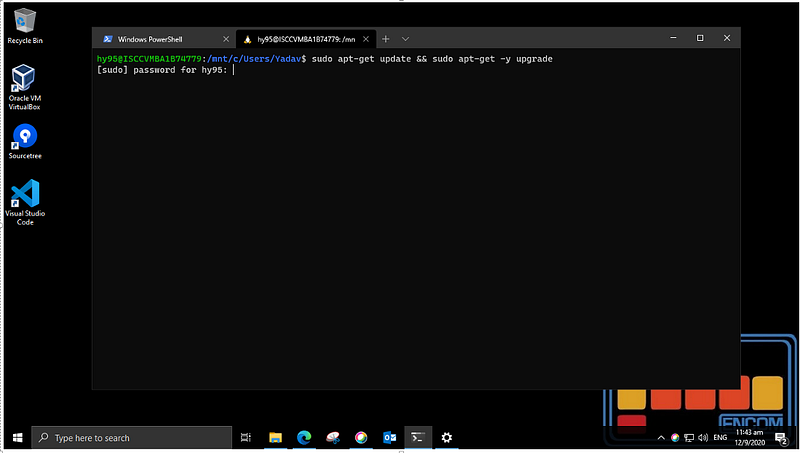
1 . Update the Distro installation and remove previous install of xrdp
1
$sudo apt-get update && sudo apt-get -y upgrade$sudo apt-get purge xrdp
- Install Xfce , select lightdm or gdm3 as per your prefernce when asked
1
# install xfce sudo apt-get install -y xfce4 xfce4-goodies
3 . Install Xrdp
1
# install xrdpsudo apt-get install xrdp
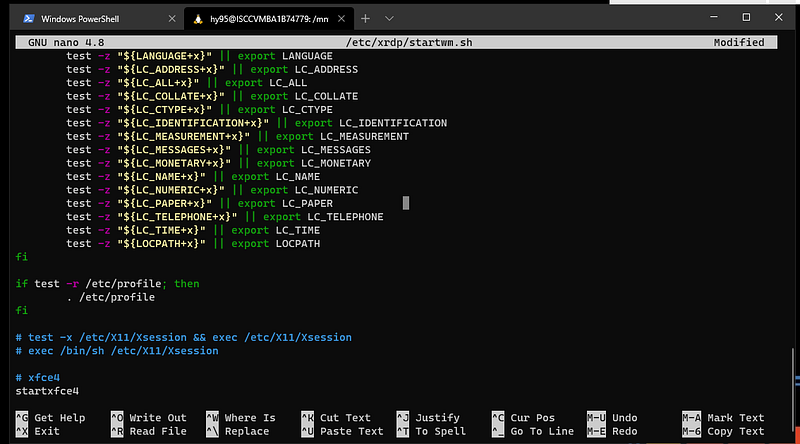
4 .Open the file in location and edit as shown in the image
1
sudo nano /etc/xrdp/startwm.sh
and add comment the last 2 lines and add the following in the end
1
# xce4Startxfce4
- No run the following to set the port and other settings
1
$sudo cp /etc/xrdp/xrdp.ini /etc/xrdp/xrdp.ini.bak$sudo sed -i 's/3389/3390/g' /etc/xrdp/xrdp.ini$sudo sed -i 's/max_bpp=32/#max_bpp=32\nmax_bpp=128/g' /etc/xrdp/xrdp.ini$sudo sed -i 's/xserverbpp=24/#xserverbpp=24\nxserverbpp=128/g' /etc/xrdp/xrdp.iniecho xfce4-session > ~/.xsession#enable dbus$sudo systemctl enable dbus$sudo /etc/init.d/dbus start$sudo /etc/init.d/xrdp start
- Open RDP in windows and connect to localhost :3390
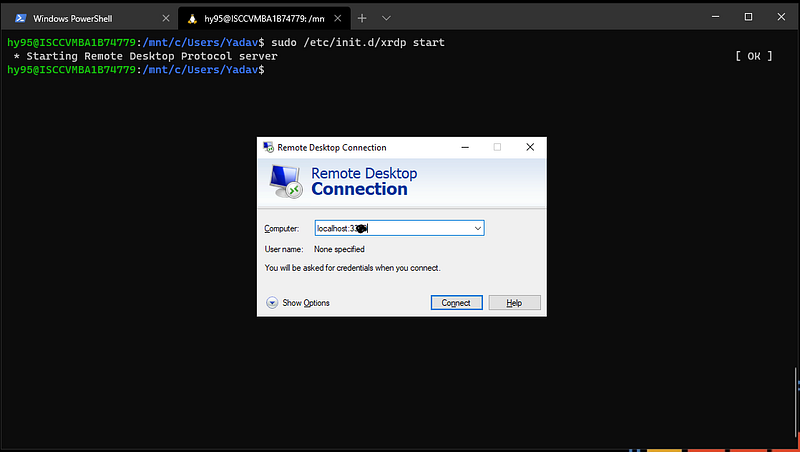
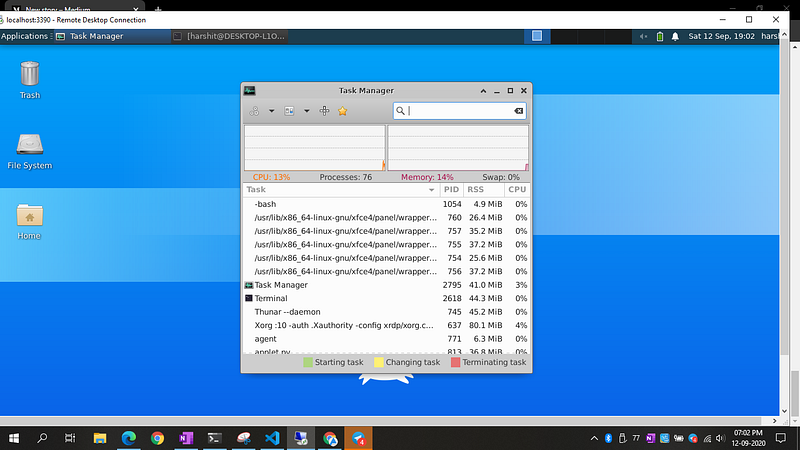
And if all went well it should log in with your username and password of WSL2
Reference
This post is licensed under CC BY 4.0 by the author.