PostgreSQL In Windows Subsystem for Linux (WSL)
PostgreSQL In Windows Subsystem for Linux (WSL)

To start refresh clean up the previous install using :
1
sudo apt-get remove postgresql
1
[sudo] password for harshityadav95:Reading package lists... DoneBuilding dependency treeReading state information... DonePackage 'postgresql' is not installed, so not removedThe following package was automatically installed and is no longer required:  libfreetype6Use 'sudo apt autoremove' to remove it.0 upgraded, 0 newly installed, 0 to remove and 0 not upgraded.
Now Install fresh using
1
sudo apt-get install postgresql
Postgres User Setup
postgresql-10 runs under the userpostgres. We need to give this user a password so that postgres can allow this user to connect to the database.
- To set the password for postgres, type
sudo passwd postgres - You will get a prompt to enter in your password. It will not show when you are typing, but it is still registering your key-strokes.
- Close and repoen the terminal.
Using psql
After your first install, and each time you restart your machine you will have to also restart the postgres service, or else you will get aIs the server running?error.
- To start the service, type
sudo service postgresql start. - To conntect to postgres, type
sudo -u postgres psql
You should get a prompt asking for your password. If this doesn’t work, then you can try the second option listed below.
- Switch users to postgres by typing
su - postgres. - Type
psql.
When this is successful you will see the command line change to look like thispostgres=#
Creating user
1
$ sudo -u postgres createuser <username>
Creating Database
1
$ sudo -u postgres createdb <dbname>
1
if getting error:WARNING:  could not flush dirty data: Function not implemented [Ignore for now]
Giving the user a password
1
$ sudo -u postgres psqlpsql=# alter user <username> with encrypted password '<password>';
Granting privileges on database
1
psql=# grant all privileges on database <dbname> to <username> ;
Run a normal arithematic query to see if everything is working , now
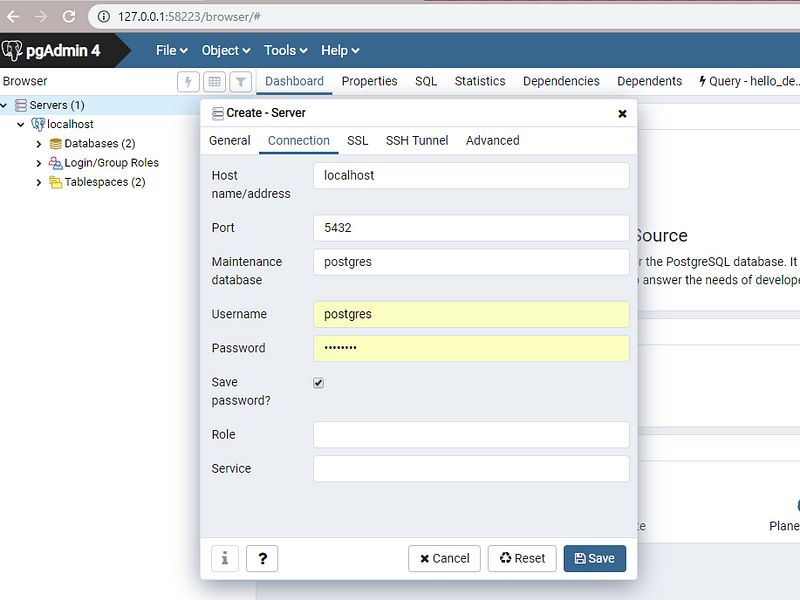
Connecting Postgresql Instance to GUI Client in Windows
There are GUI Clients which specially designed for PgAdmin4 or some general managemnt studio which supports different kind of database like
- Dbeaver [https://dbeaver.io]
- Adminer [https://www.adminer.org]
- Table Plus [https://tableplus.io]
- heidisql [https://www.heidisql.com/]
- OmniDB [https://omnidb.org/en/
- squirrelsql[https://www.squirrelsql.org]
Among all the one with stable release and portable package to run without installation I chose Table Plus now to connect Launch the .exe
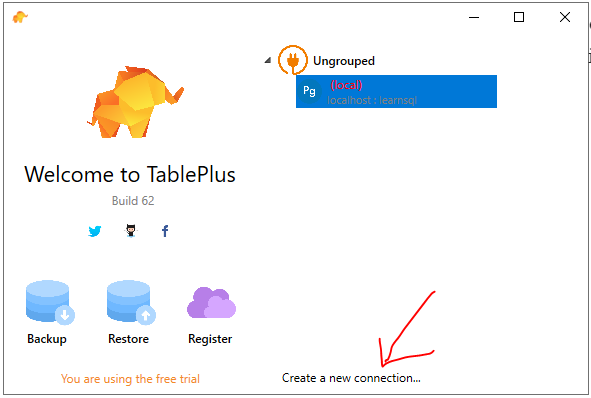
click on create new connection and enter the settings :
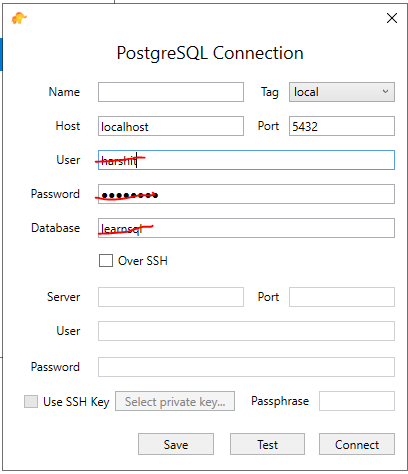
Replace the Username , password and database with your config
or if using PgAdmin