Setting up a Maven Project on Eclipse in Linux Ubuntu Part 1
Setting up a Maven Project on Eclipse in Linux Ubuntu Part 1
Check this video to get started with maven theory
- Check the version of Java Installed
1
harshit@harshit-e430:~$ java --versionopenjdk 11.0.11 2021-04-20OpenJDK Runtime Environment (build 11.0.11+9-Ubuntu-0ubuntu2.20.04)OpenJDK 64-Bit Server VM (build 11.0.11+9-Ubuntu-0ubuntu2.20.04, mixed mode, sharing)
2 .Check the version of JavaC installed
1
harshit@harshit-e430:~$ javac --versionjavac 11.0.11
3 .Download the Java Eclipse IDE for EE Developers
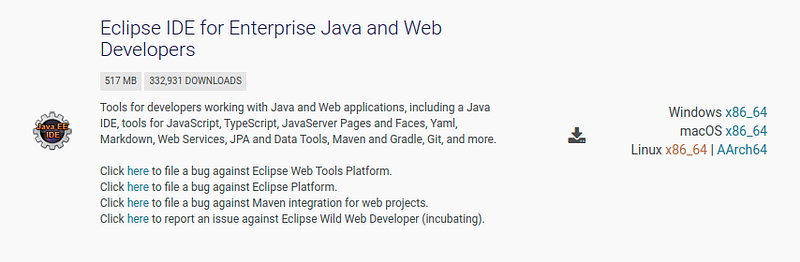
4 .Extract the application in Folder and run the application
5 .Click and Create Maven Project
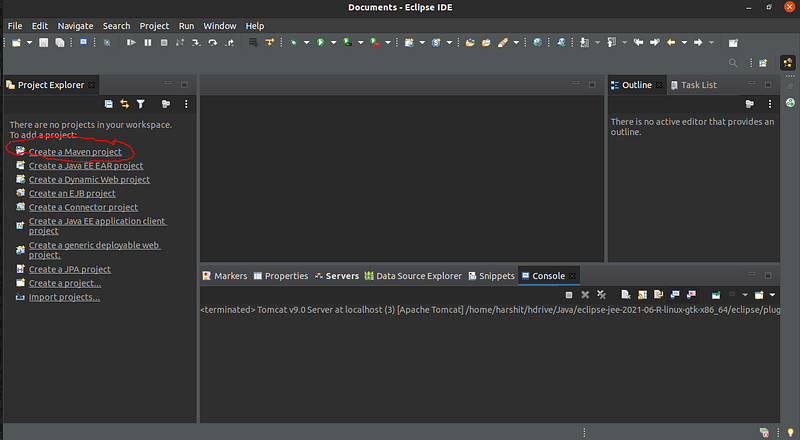
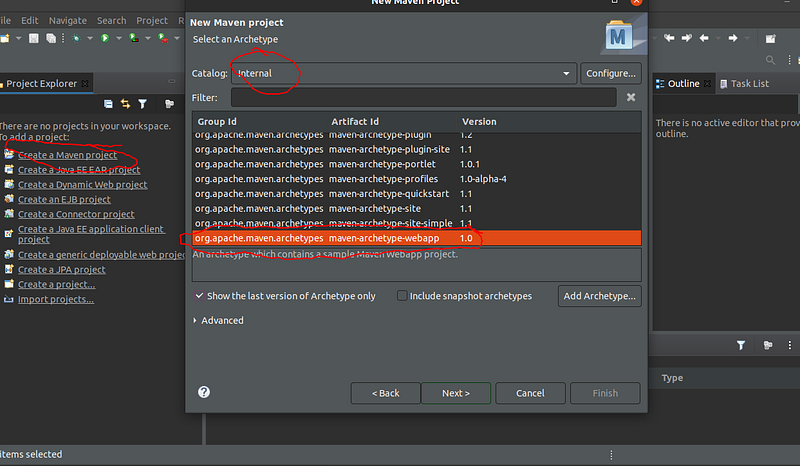
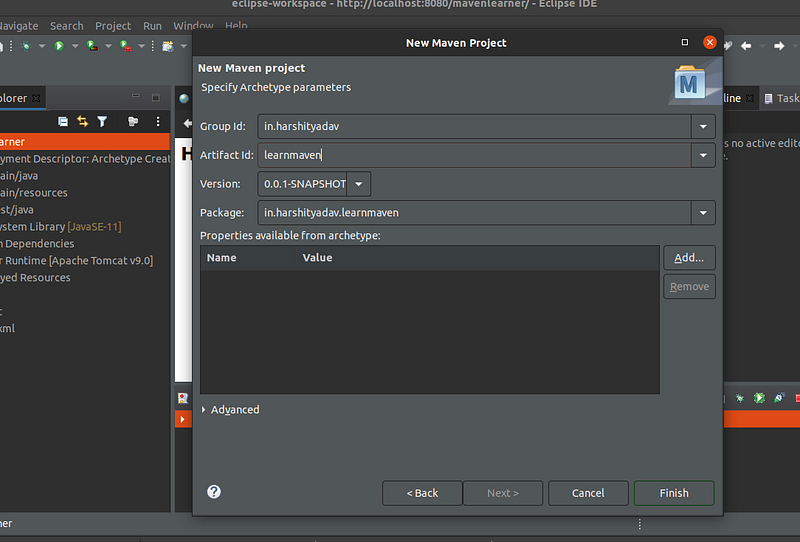
6. Download and setup the apache tomcat and extract in folder
Link :https://tomcat.apache.org/download-90.cgi
7. Right click on on the project go to Preference
8.Go to targeted runtime and select and directory in which the tomcat server in setup in and then click apply
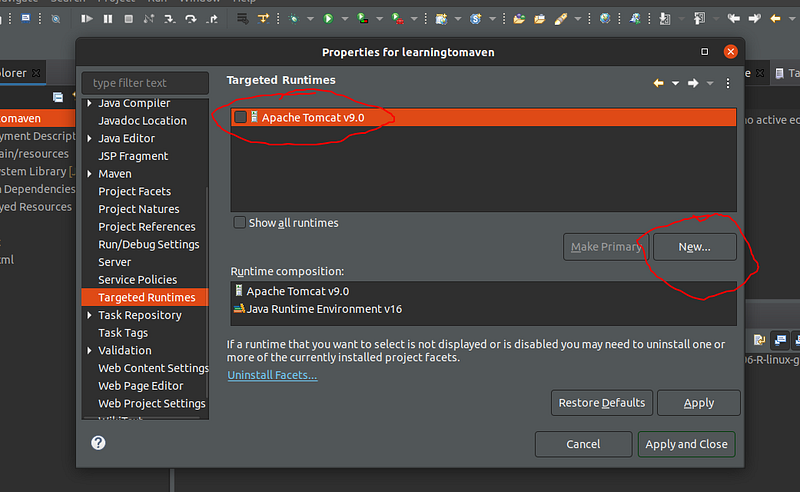
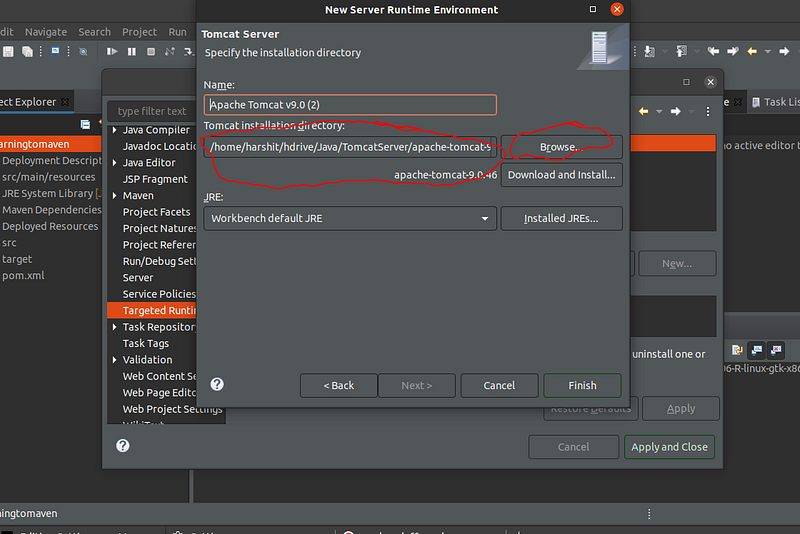
If you setting for the first time then Apache will not be available as option as shown below so go to new > select the version of tomcat you extracted in the folder » and select the path and then click finish
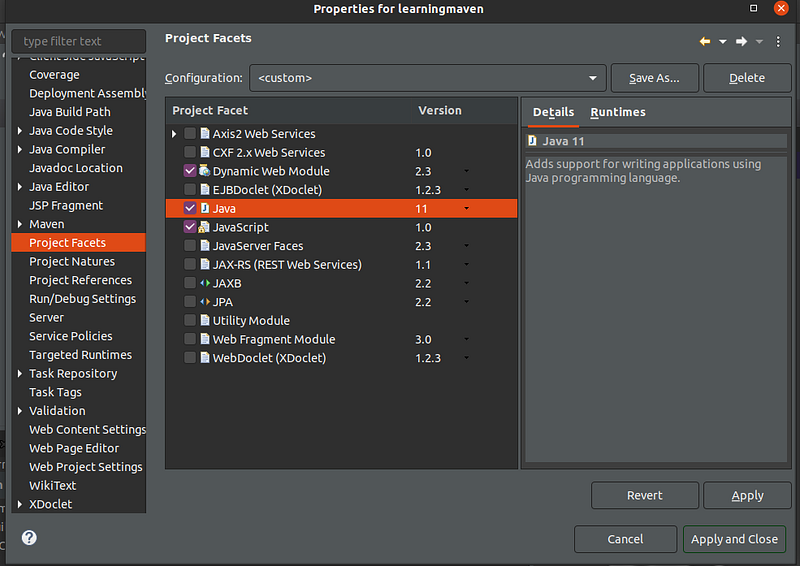
10. Project Facets
Now go the project Facets and where the default version of java will be set to the 1.5 change it to the version you have installed in your machine
11 .Check the Java Compiler version that it is set to the latest version
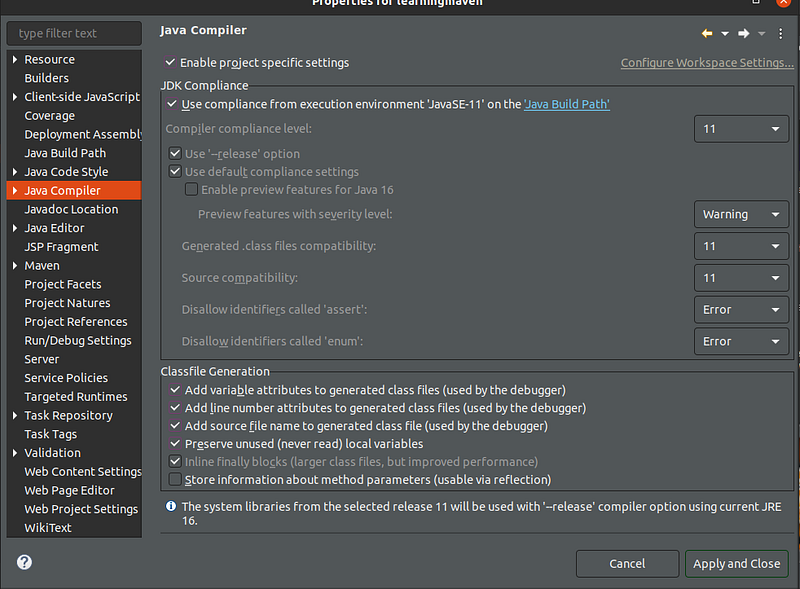
12 .Next go to Java build path and select the Maven and JRE , NOT the apache as we dont need any tomcat specific library in the current build
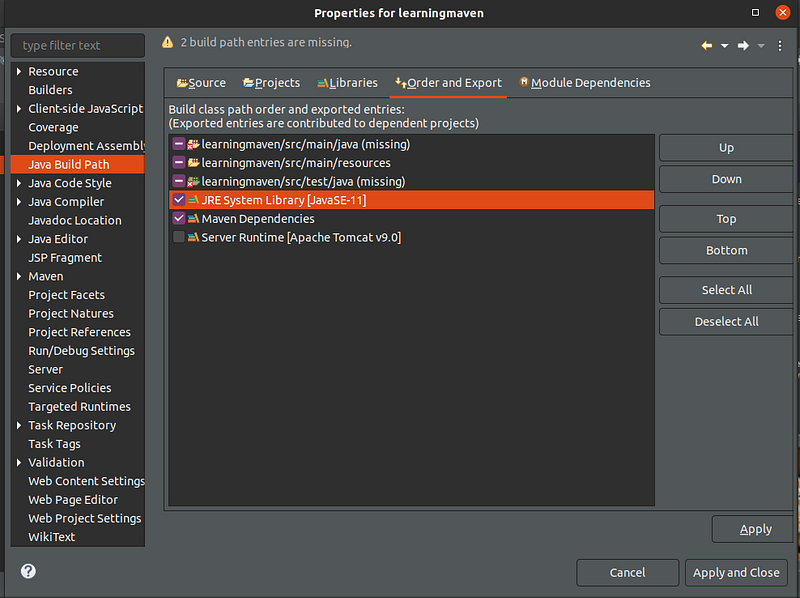
If there is some error check on the steps again and click apply on each step individually and at the end apply and close
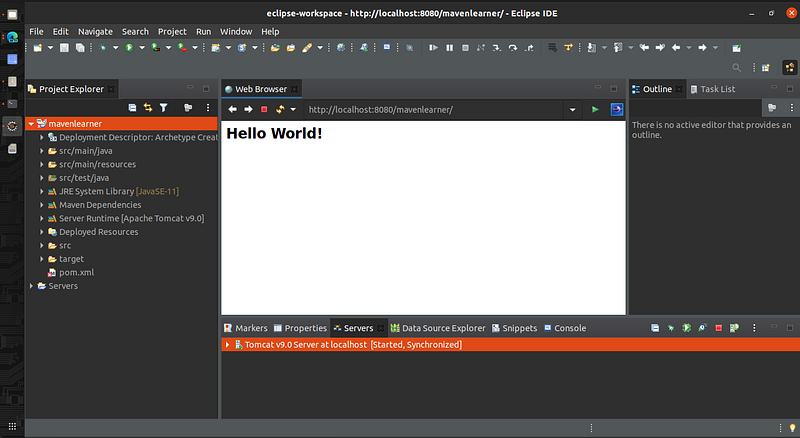
You will end up something like this
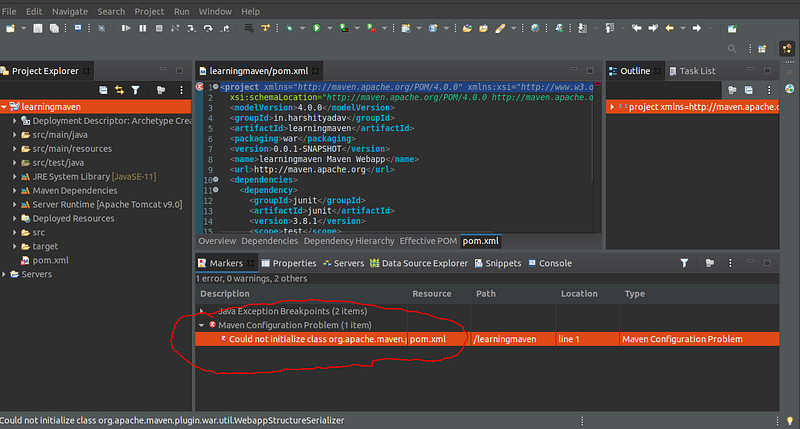
PS : Not sure about the Configuration problem will come back to it later or let me know why it shows as it runs with it also
Now to start the Maven application sample Boilerplate code to run “Hello World “
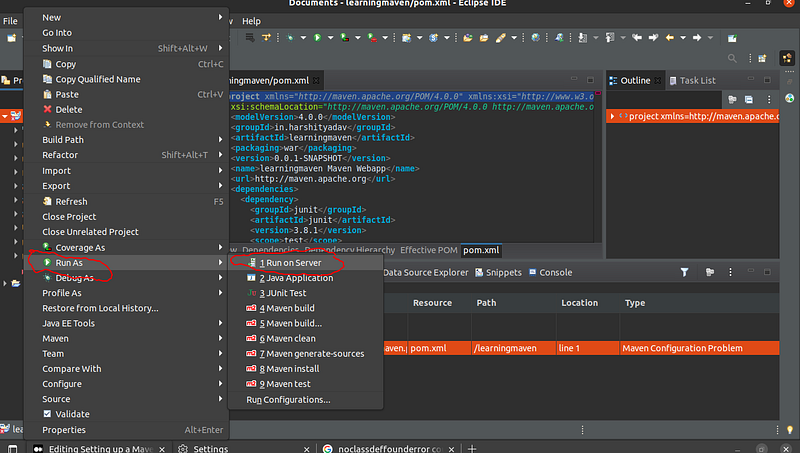
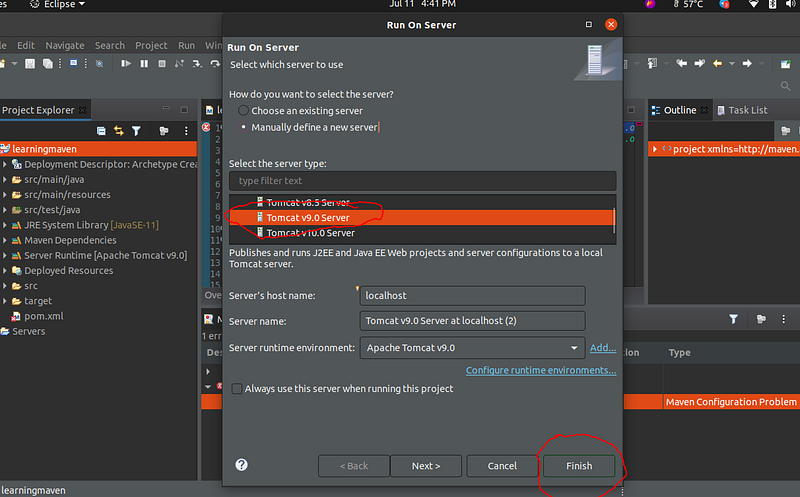
13 .Select the version of Tomcat installed and Click Finish
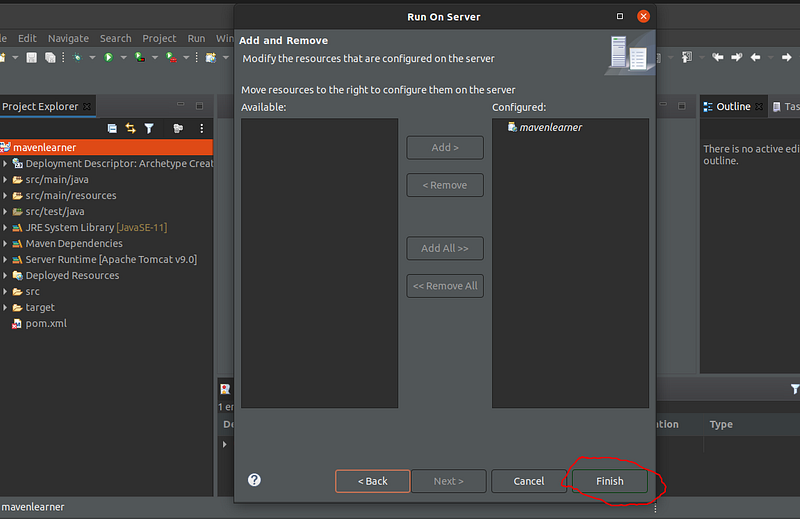
14 .If Everything went right you would see the Hello world displayed