Homebrew Explained : Shipping my first MacOs App Drezze
How Homebrew works under the hood and how to distribute a macOS app through a custom tap and Homebrew Cask.
Link : https://harshityadav.in/drezze-Disk-Cleaner-App/
Today, we are diving into Homebrew—how it works under the hood, why it has become the default package manager for macOS (and increasingly popular on Linux), and most importantly, how you can use it to distribute your own software.
If you have built a command-line tool or a macOS app packaged inside a .dmg file, hosting it on Homebrew lets your users install and update it with a single command.
What is Homebrew and How Does It Work Under the Hood?
When you work on Linux environments like Ubuntu or Fedora, package management is solved at the OS level using apt, dnf, or pacman. But historically, macOS lacked a built-in, developer-focused command-line package manager.
Homebrew was built to fill that gap (often called “The Missing Package Manager for macOS”). It is fundamentally a package manager written in Ruby and Bash that automates downloading, compiling, or extracting binary packages directly into your user environment.
What can you install with Homebrew?
- CLI Tools and Binaries (Formulae): Command-line applications, runtimes, and databases like
node,postgresql,git,ffmpeg, orripgrep. - System Libraries: Headers and shared libraries like
opensslorlibpngneeded during compilation. - Desktop Graphical Applications (Casks): macOS GUI applications packaged in
.dmg,.pkg, or.zipfiles—such as Visual Studio Code, Slack, Google Chrome, or your own custom desktop app.
Formula vs. Cask: The Architecture
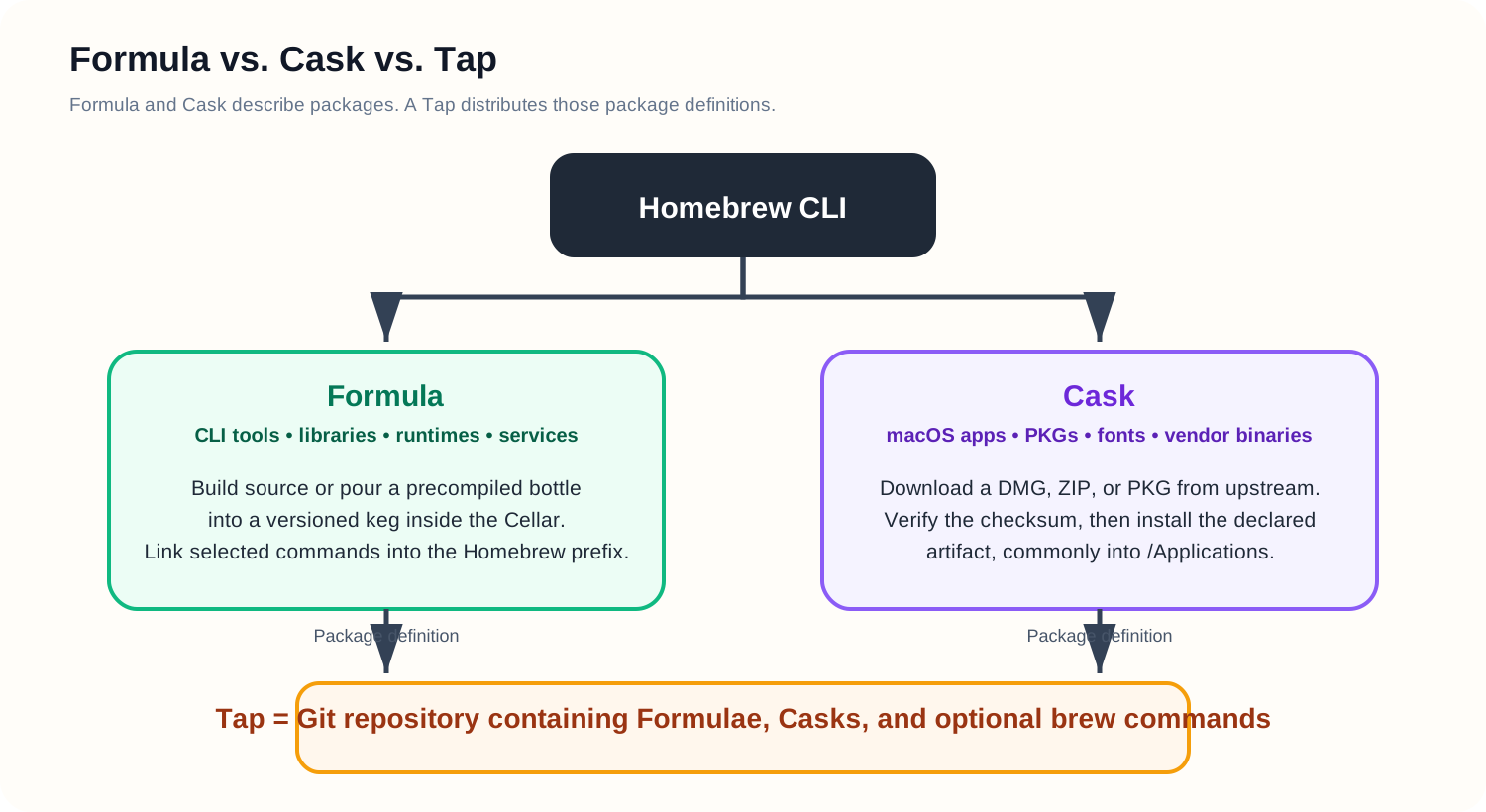
Before publishing anything, you need to understand Homebrew’s two primary artifacts:
- Formula (
Formula/foo.rb): Used for command-line interfaces (CLIs) or libraries. Homebrew downloads the source code or a pre-compiled binary tarball, builds it if necessary, and links the binary into your systemPATH. - Cask (
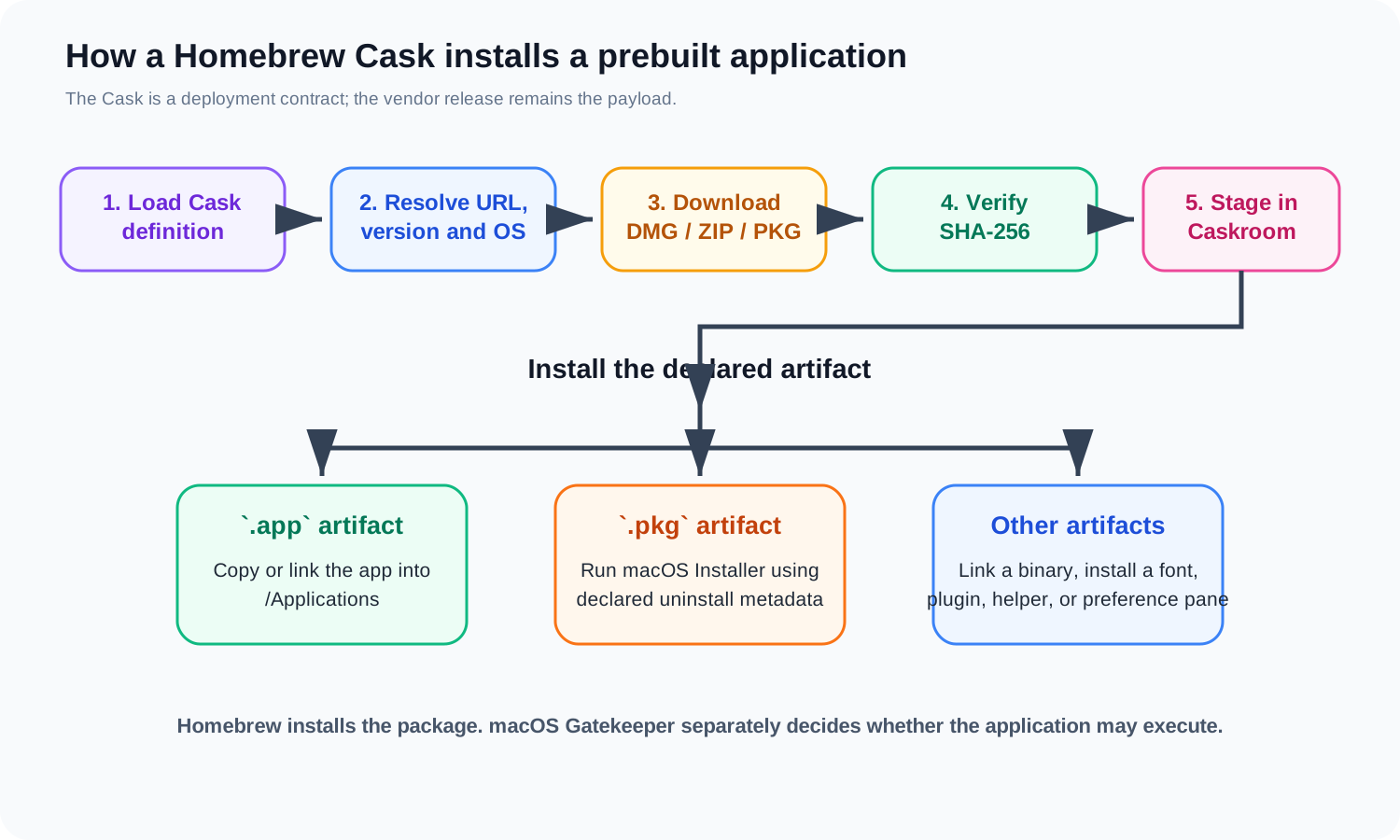
Casks/foo.rb): Used for macOS desktop GUI applications. Instead of compiling source code, a Cask tells Homebrew: “Download this.dmgfile, mount it, copyApp.appinto/Applications, and register it with the OS.”
Official Homebrew Taps vs. Custom GitHub Taps
When you run brew install node, Homebrew searches its official central repositories: homebrew/core (for formulae) and homebrew/cask (for GUI applications).
Why not publish directly to official Homebrew core?
Getting your app accepted into homebrew/cask or homebrew/core requires:
- Meeting high popularity thresholds (e.g., GitHub stars, user base).
- Passing strict code reviews and maintainer approval pipelines.
- Following strict open-source licensing guidelines.
What is a Custom “Tap”?
A Tap is simply a external Git repository hosted on GitHub (or GitLab) that contains your custom Formulae or Casks.
When a user runs:
1
brew tap harshityadav95/tap
Homebrew clones https://github.com/harshityadav95/homebrew-tap behind the scenes into /opt/homebrew/Library/Taps/harshityadav95/homebrew-tap. From that point on, Homebrew can discover and install any software defined in that repository!
Step-by-Step: Publishing a macOS .dmg App via Homebrew Cask
Suppose you built an Electron, Tauri, or Swift desktop app called “Drezze”, packaged it into Drezze-Disk-Cleaner.dmg, and want users to install it on macOS via Homebrew.
1. Requirements
Before starting, ensure you have:
- A compiled
.dmgfile containing your.appbundle. - A public hosting location for the file (GitHub Releases is the standard choice).
- A GitHub account.
2. Host Your DMG File on GitHub Releases
- Create a public GitHub repository for your app source code or releases (e.g., github.com/harshityadav95/drezze-Disk-Cleaner-App).
- Draft a new Release tagged
v1.0.0. - Upload your compiled
Drezze-Disk-Cleaner.dmgfile as a release asset. Copy the direct download link for the asset:
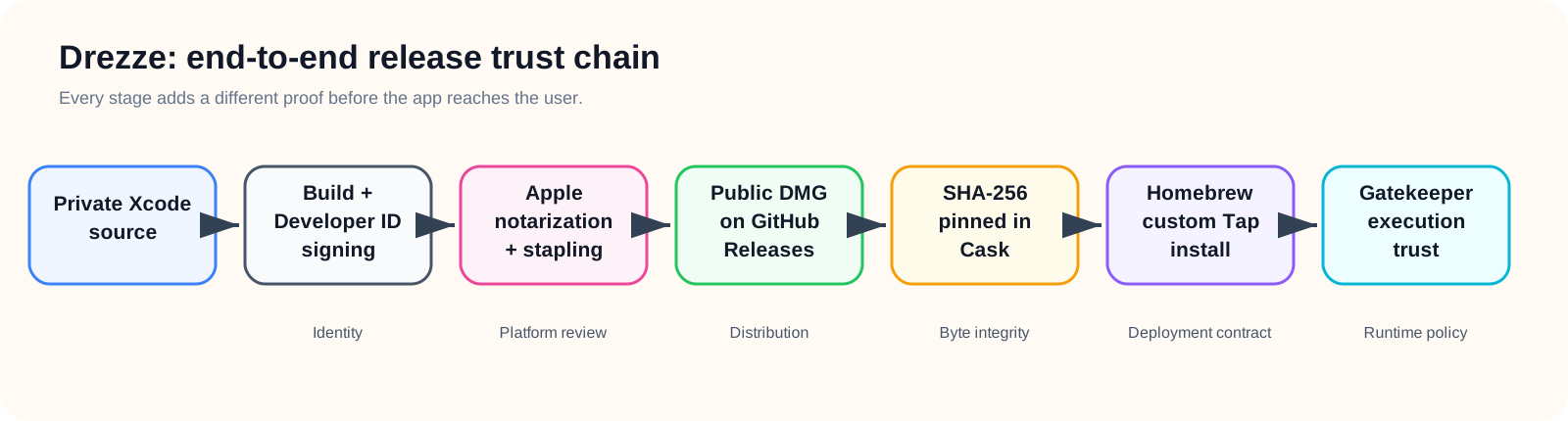
3. Generate the SHA-256 Checksum
Homebrew verifies the integrity of every downloaded file using a SHA-256 hash. Download your DMG or compute its hash locally:
1
shasum -a 256 Drezze-Disk-Cleaner.dmg
Output:
1
e3b0c44298fc1c149afb4c8996fb92427ae41e4649b934ca495991b7852b855  Drezze-Disk-Cleaner.dmg
4. Create Your Custom Homebrew Tap Repository
- Create a new public GitHub repository.
- Naming Convention (Important): The repository name must start with
homebrew-so users can use shorthand commands.- Name:
homebrew-tap.
- Name:
- Clone the repo to your local machine and set up the directory structure:
1
2
3
4
5
git clone https://github.com/harshityadav95/homebrew-tap.git
cd homebrew-tap

# Create the Casks directory (Capital 'C', plural)
mkdir Casks
Note on Naming: For Casks, Homebrew strictly looks inside the
Casks/directory (plural with capital C). For CLI Formulae, it usesFormula/(singular with capital F).
5. Write the Cask Specification File
Inside the Casks/ directory, create a Ruby file matching your app token name in lowercase hyphenated format (e.g., Casks/drezze-disk-cleaner.rb):
1
2
3
4
5
6
7
8
9
10
11
12
13
14
15
16
17
18
cask "drezze-disk-cleaner" do
  version "1.0.0"
  sha256 "e3b0c44298fc1c149afb4c8996fb92427ae41e4649b934ca495991b7852b855"

  url "https://github.com/harshityadav95/drezze-Disk-Cleaner-App/releases/download/v#{version}/Drezze-Disk-Cleaner.dmg"
  name "Drezze Disk Cleaner"
  desc "Private, local-first disk cleaner"
  homepage "https://harshityadav.in/drezze-Disk-Cleaner-App/"

  # The exact name of the .app inside your .dmg
  app "Drezze Disk Cleaner.app"

  # Optional: Files to clean up on 'brew uninstall --zap Drezze'
  zap trash: [
    "~/Library/Application Support/Drezze",
    "~/Library/Preferences/com.harshityadav95.Drezze.plist",
  ]
end
Breakdown of the Stanzas:
cask "drezze-disk-cleaner": Defines the token used inbrew install --cask drezze-disk-cleaner.version: Version string, interpolated dynamically into theurl.sha256: Checksum for security and integrity verification.app "Drezze Disk Cleaner.app": Directs Homebrew to extractDrezze Disk Cleaner.appfrom the DMG and place it in the system/Applicationsdirectory.
6. Commit and Push to GitHub
Push the file to your repository:
1
2
3
git add Casks/drezze-disk-cleaner.rb
git commit -m "Add Drezze cask v1.0.0"
git push origin main
How Users Install Your App
Now, any macOS user on Apple Silicon or Intel can install your application with standard Homebrew commands:
Method A: Two-Step Installation
1
2
3
4
5
# 1. Tap your repository (Homebrew automatically maps 'harshityadav95/tap' to 'github.com/harshityadav95/homebrew-tap')
brew tap harshityadav95/tap

# 2. Install the cask
brew install --cask drezze-disk-cleaner
Method B: One-Liner
1
brew install --cask harshityadav95/tap/drezze-disk-cleaner
Homebrew handles downloading the .dmg, verifying the hash, mounting the volume, moving the app into /Applications, and unmounting the disk image automatically.
How to Push Updates (The Lifecycle)
When you release version 1.0.1 of your desktop app, follow this deployment pipeline:
- Upload the new DMG asset (
Drezze-Disk-Cleaner.dmg) to your application’s GitHub Releases page. Calculate the new SHA-256 hash:
1
 shasum -a 256 Drezze-Disk-Cleaner.dmg
Update
Casks/drezze-disk-cleaner.rbin yourhomebrew-taprepository:1 2
version "1.0.1" sha256 "NEW_SHA256_HASH_HERE"
Commit and push:
1
2
 git commit -am "Bump Drezze to 1.0.1"
 git push origin main
When users run brew upgrade, Homebrew fetches your updated cask file, compares versions, downloads the new DMG, and replaces the old application seamlessly.
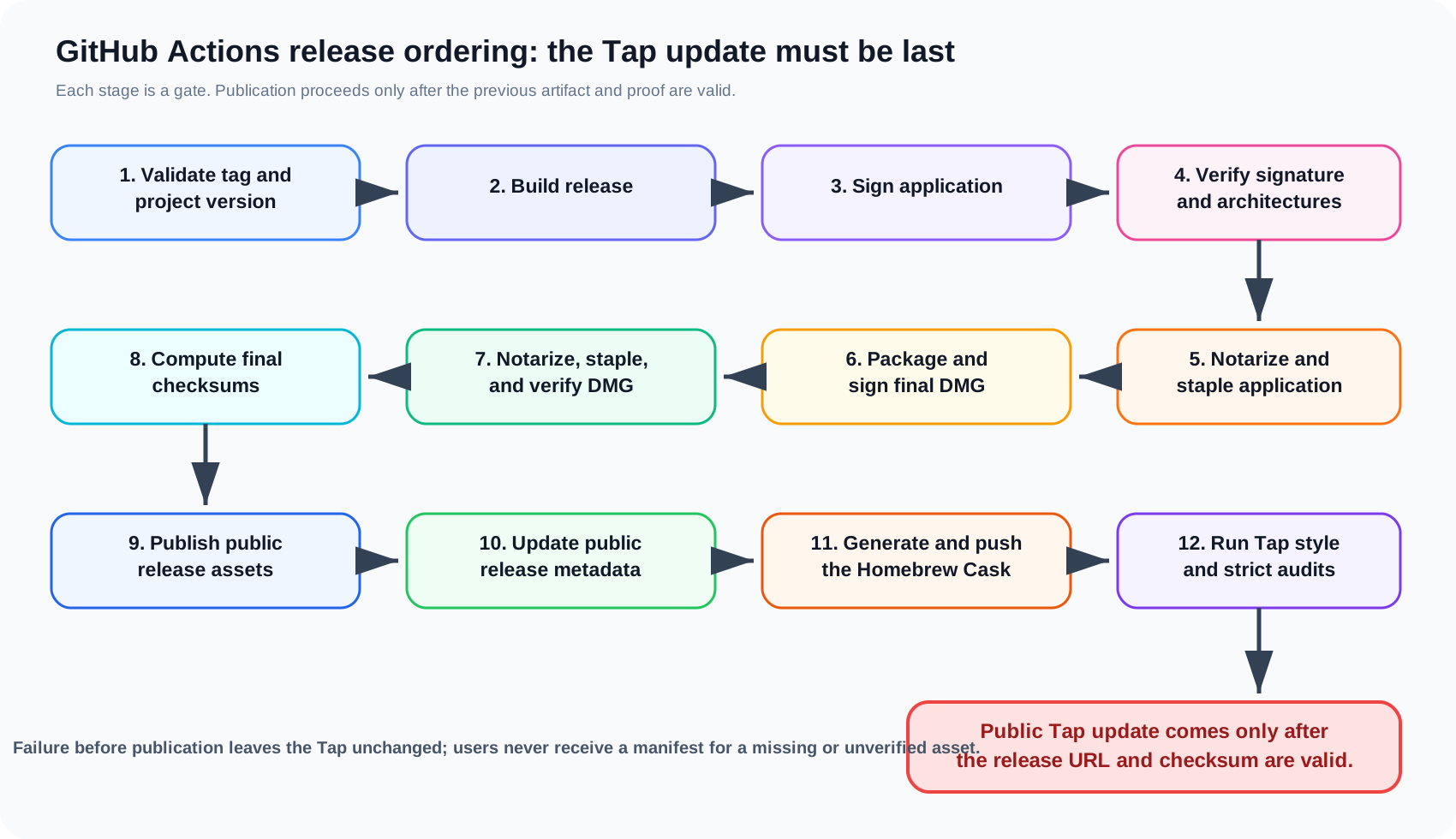
Drezze’s GitHub Actions Release Pipeline